


SpotCalc Pro replaces hand calculations, scratch sheets and separate invoice tools with one faster workflow. It handles gold, silver and platinum scrap, bullion and coins — with per-line pricing, invoices, and the right live price feed whether you are buying or selling.
1. Standard Buy or Sell workflow
- Open Buy to buy items from a customer, or Sell to price items you are selling. Each screen keeps its own item list.
- Tap + Add and choose Gold, Silver or Platinum for scrap, Bullion for bars and rounds, or Coins for known coins. The smaller “Add … row” button inside a metal group adds another scrap row.
- For scrap, pick the grade and enter the weight. For bullion or coins, pick the product, check its details and enter the quantity.
- Price it with the metal’s default percentage, a custom percentage, dollars below spot (bullion and coins), or a manual dollar price (scrap rows only).
- Check the totals, then send everything to a new invoice or an existing draft if needed.
2. Spot prices, feeds and screens
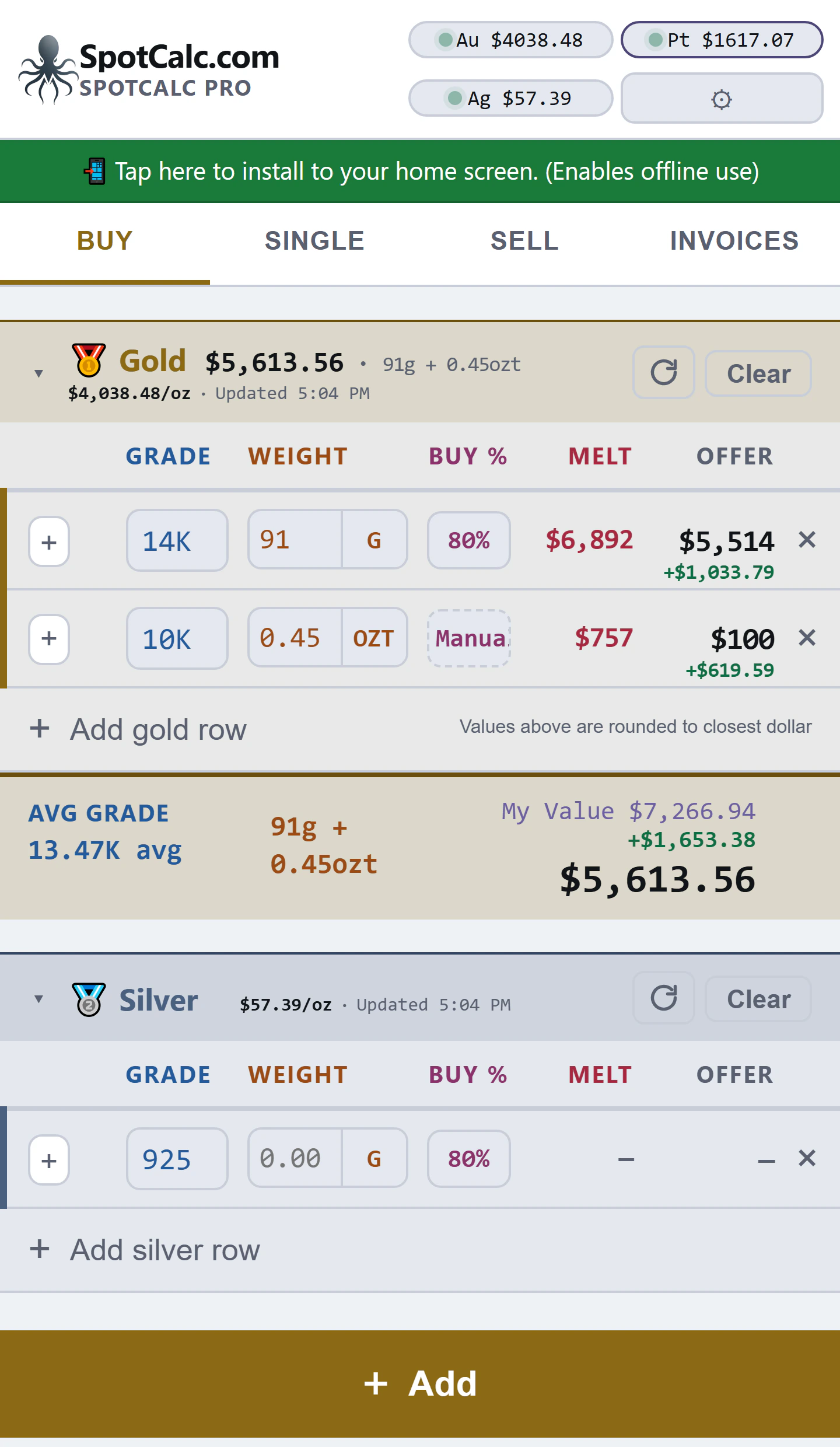
The Au, Ag and Pt buttons at the top show the spot prices being used right now. A green dot means the price is live; a manual marker means you have overridden it. If a refresh fails, the price is marked stale and the last cached value stays available with its original timestamp.
- Tap any price button to jump straight to that metal’s Spot Prices setting. The gear opens the full Settings window.
- Buy and Single use BullionVault’s buying price. Sell uses Gold-API’s selling price.
- The header always shows the price driving the math — including a manual override if you set one.
- The footer always shows the live feed, even while a manual price is driving the calculations above.
The tabs are Buy, Single, Sell and Invoices. Sell works like Buy, but says Price instead of Offer, uses the selling feed, and allows percentages up to 200% for above-spot pricing.
3. How prices are calculated
Scrap math is simple: your weight is converted to grams, multiplied by the purity, and priced at the active spot price. Bullion and coins use the stored weight and purity of the product you picked; custom bars use the grams you entered.
My Value is your own target value for each metal, set in Settings → My Value. The green figure is the gap between My Value and the current offer or price — a planning margin, not actual profit.
The math always keeps the cents. Scrap rows display whole dollars to save space; totals and profit figures show cents. Weights display to two decimals.
4. Scrap rows on Buy and Sell
Gold, Silver and Platinum groups share the same row controls. Tap a group’s title to collapse or reopen it; the circular arrow recalculates it; Clear removes all its rows after confirmation.
- Small + under Line Item: opens that row’s menu, which holds two actions — Add item line name and Disable row. A line name is an optional description such as “Rope chain” or “Customer ring”; tap the saved name to edit or remove it, or to reach the same disable action, because a named row shows the name in place of the +. On a phone the Line Item column stays collapsed to just that + until something in the group is named, so the pricing figures get the width instead; naming any line widens the column for that whole metal group.
- Disable row: keeps the line on screen but takes it out of every total — its metal group’s footer, the average grade and weight, Combined Totals and any invoice built from the page. The row greys right back so it cannot be mistaken for one that still counts, while its own melt and offer stay readable. The menu item becomes Enable row to put it back. Use it to set a piece aside mid-deal — a customer pulling an item, or a lot you want to price both ways — without losing the weight and grade you already entered.
- Grade: pick a standard purity, or use Custom to enter an exact percentage — optionally still showing a familiar grade label.
- Weight and unit: enter the amount, then use G, DWT, OZT or KG to change units. Changing units converts the weight instead of clearing it.
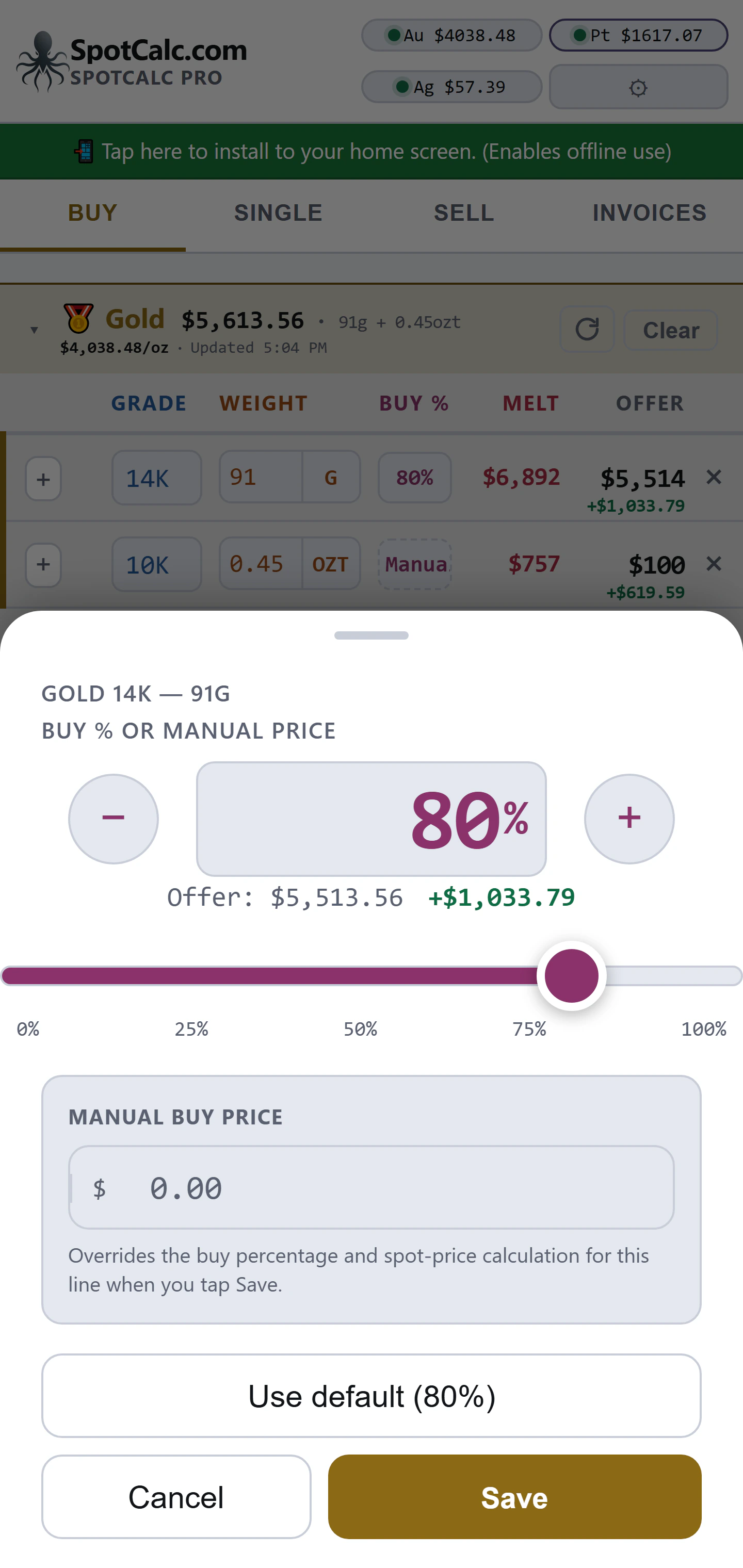
- Percentage button: opens the live pricing window. Drag the slider, type an exact percentage, or use −/+ for 0.01% changes.
- Manual price: enter a dollar amount in that same window to override the spot-and-percentage math for that line. Save keeps it; Use default clears it.
- ×: deletes that line only.
Mixed weight units
Weight summaries list each unit you actually used. “10g +” followed by “0.45ozt” means two separate totals added together — not the same weight shown two ways.
5. The Add menu
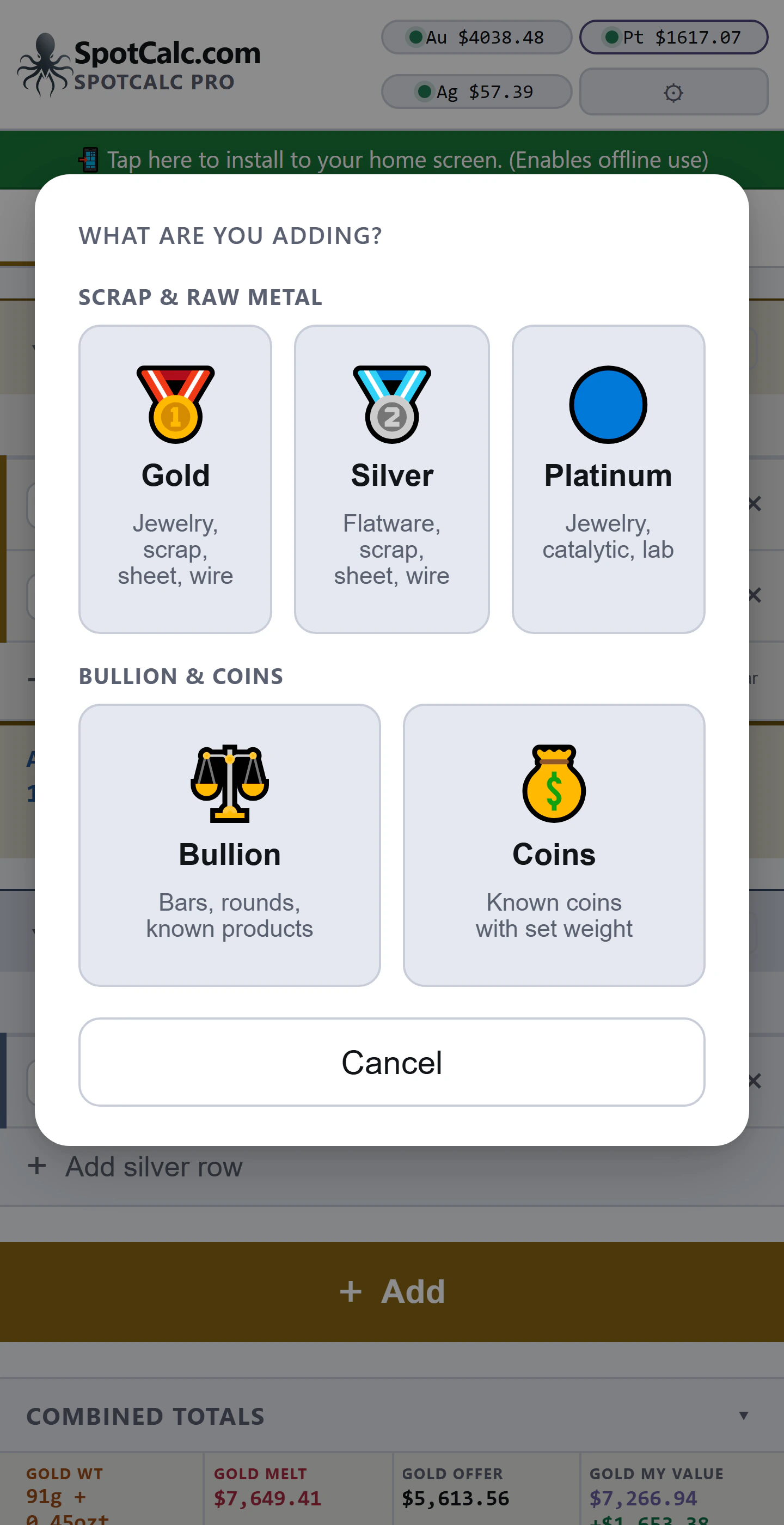
Every item type starts from the main + Add button:
- Gold, Silver and Platinum add scrap rows for jewelry, flatware, sheet, wire and similar weighed items.
- Bullion opens the bar-and-round workflow with known or custom weights.
- Coins opens the searchable coin database with stored weights and purities.
6. Bullion workflow
- Tap + Add → Bullion, then choose Gold, Silver or Platinum.
- Search the list and pick a bar, round or lot. Known products fill in weight and purity automatically; custom bars and percentage-marked lots ask for a gram weight.
- Review metal, purity, weight and melt per piece, then enter the quantity.
- Price each piece by % of Spot or $ Below Spot — editing one updates the other. (A negative dollars-below number means dollars above spot.)
- Tap Add to List. The Bullion section then shows the quantity, product, purity, weight, offer/price and profit.
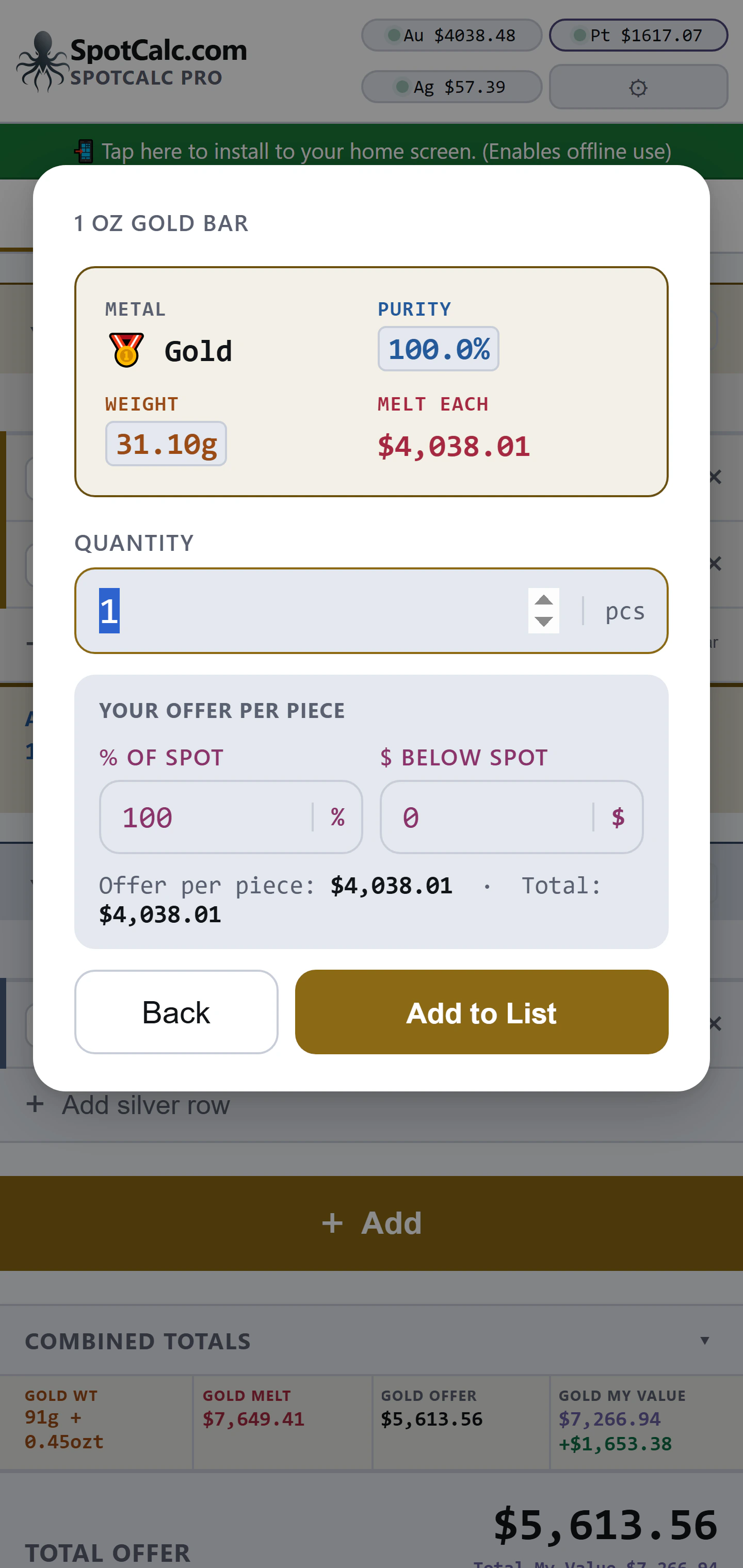
Tap the Bullion title to collapse or reopen the group, Clear to empty it, or × to delete one item. Bullion counts toward Combined Totals and invoices like everything else on the screen.
7. Coin workflow
- Tap + Add → Coins. Search by name, category or metal. The list covers U.S. and world gold, silver and platinum coins plus common rounds and bars.
- Pick the exact coin and check its date range, weight, purity and metal — those stored values drive the math.
- Enter the quantity and price each coin by % of Spot or $ Below Spot — editing one updates the other. (A negative dollars-below number means dollars above spot.)
- Tap Add to List. The Coins section then shows the quantity, coin, purity, weight, offer/price and profit.
Like bullion, a coin priced by percentage follows spot, while one priced by dollars-below keeps its dollar amount from when it was added. The percentage button can change that later. (Manual dollar prices are only for scrap rows.)
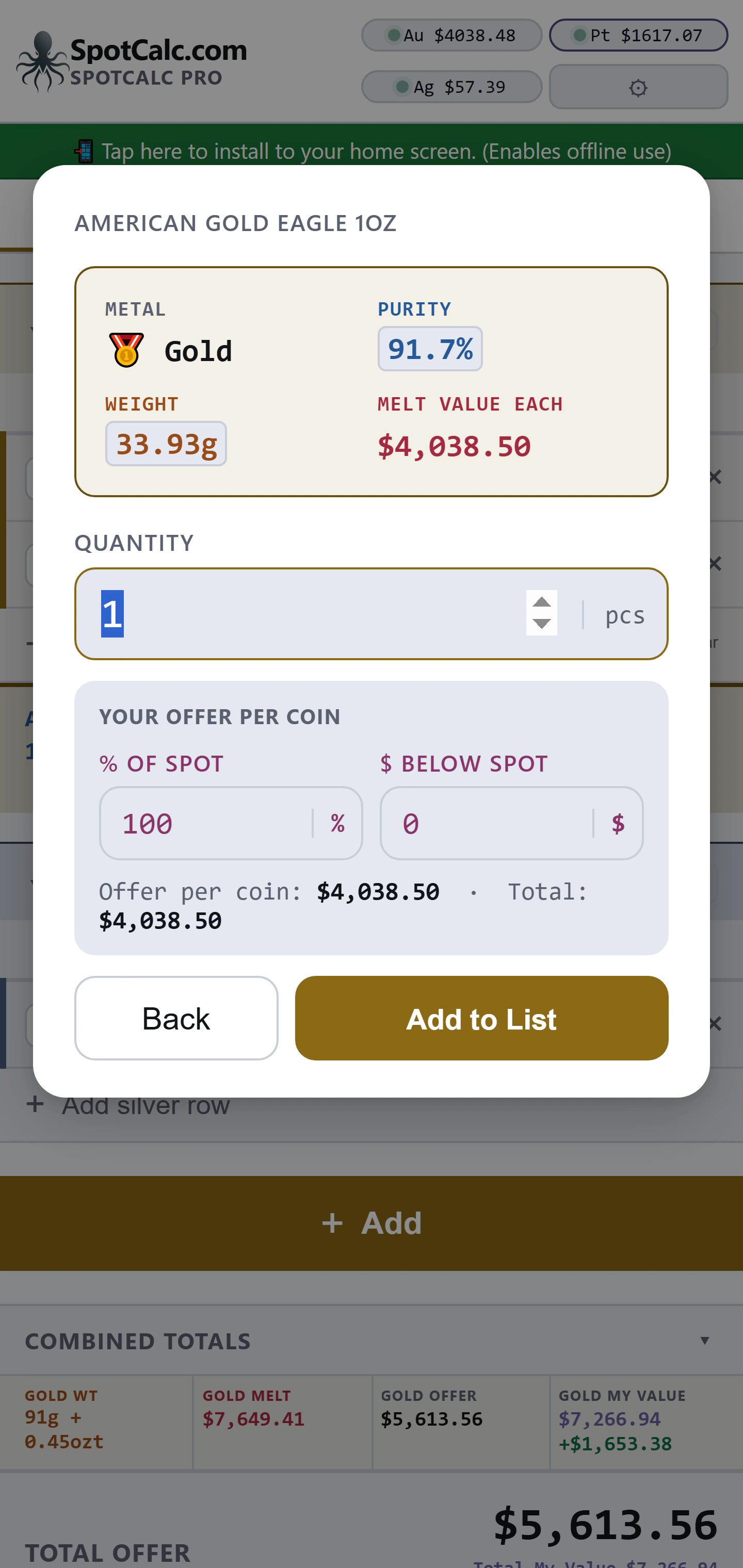
Tap the Coins title to collapse or reopen the group, Clear to empty it, or × to delete one coin. The Google Lens button sits at the bottom of the coin search window.
8. Totals and display controls
Each metal group has its own totals — average grade, weight, offer/price and, when enabled, My Value and profit. Bullion and Coins have their own totals too. Combined Totals adds everything together.
- Tap the Combined Totals title or arrow to collapse or reopen it.
- MV + Profit + Melt quickly shows or hides supporting value fields throughout the active list.
- Buy % / Sell % shows or hides percentage columns and summaries.
- The average percentage shown is total offer (or price) divided by total melt, so every override and item price is included.
- Rows disabled from the + menu are excluded everywhere — group totals, Combined Totals and invoices — so a greyed line never reaches a customer quote.
- Settings → Choose what is shown → Buy & Sell screen options controls which fields appear here.
9. Single calculator
Single is the quick calculator for one item. Pick the metal, choose a standard or custom grade, enter the gram weight and buy percentage, then read off melt, offer, My Value and margin. Single uses the same live feed as Buy.
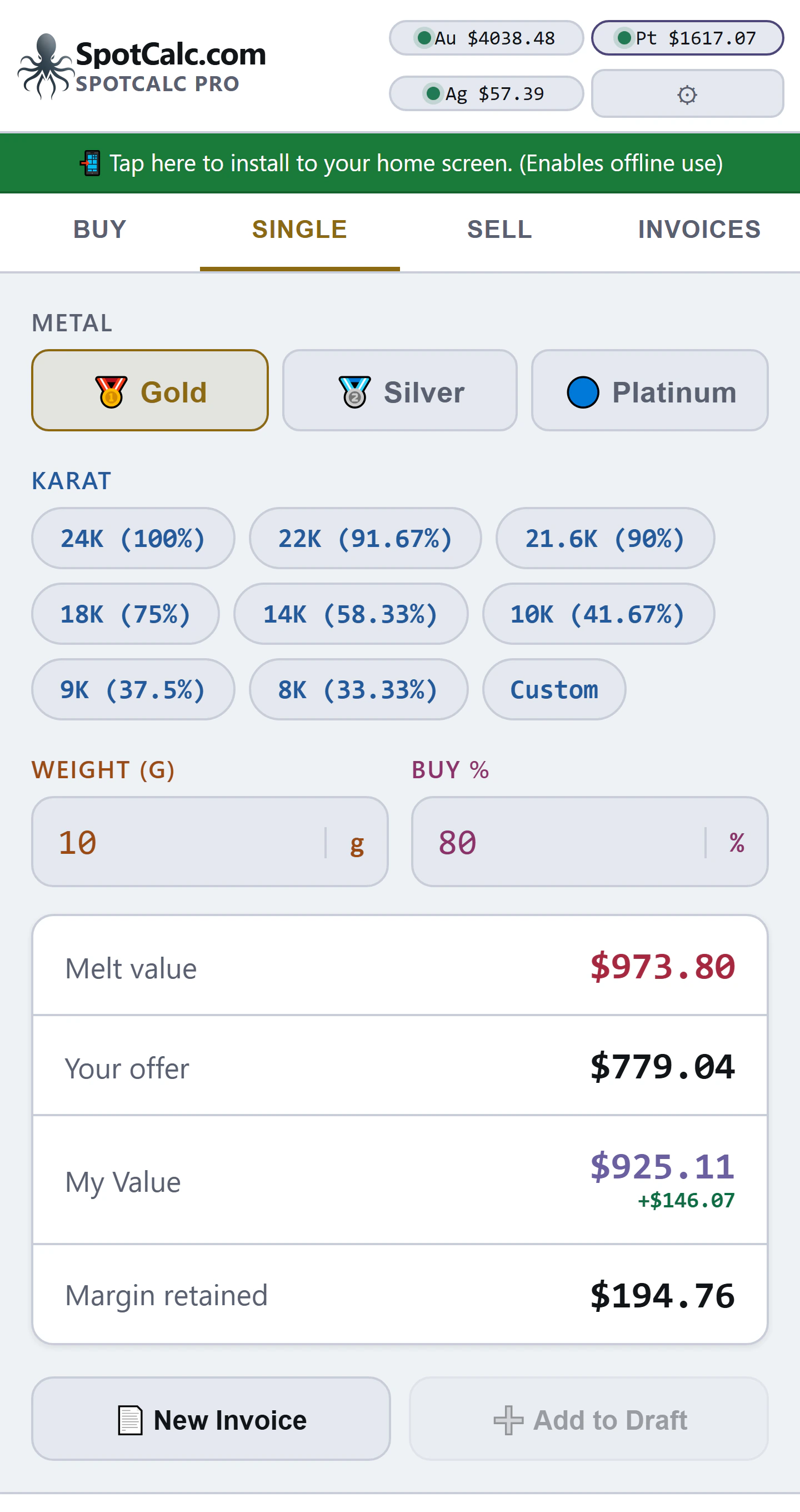
New Invoice starts an invoice from the result. Add to Draft adds it to an existing draft.
10. Creating, editing and exporting invoices
Start from Buy, Sell or Single to carry your items over, or use Invoices → New Invoice to start blank.
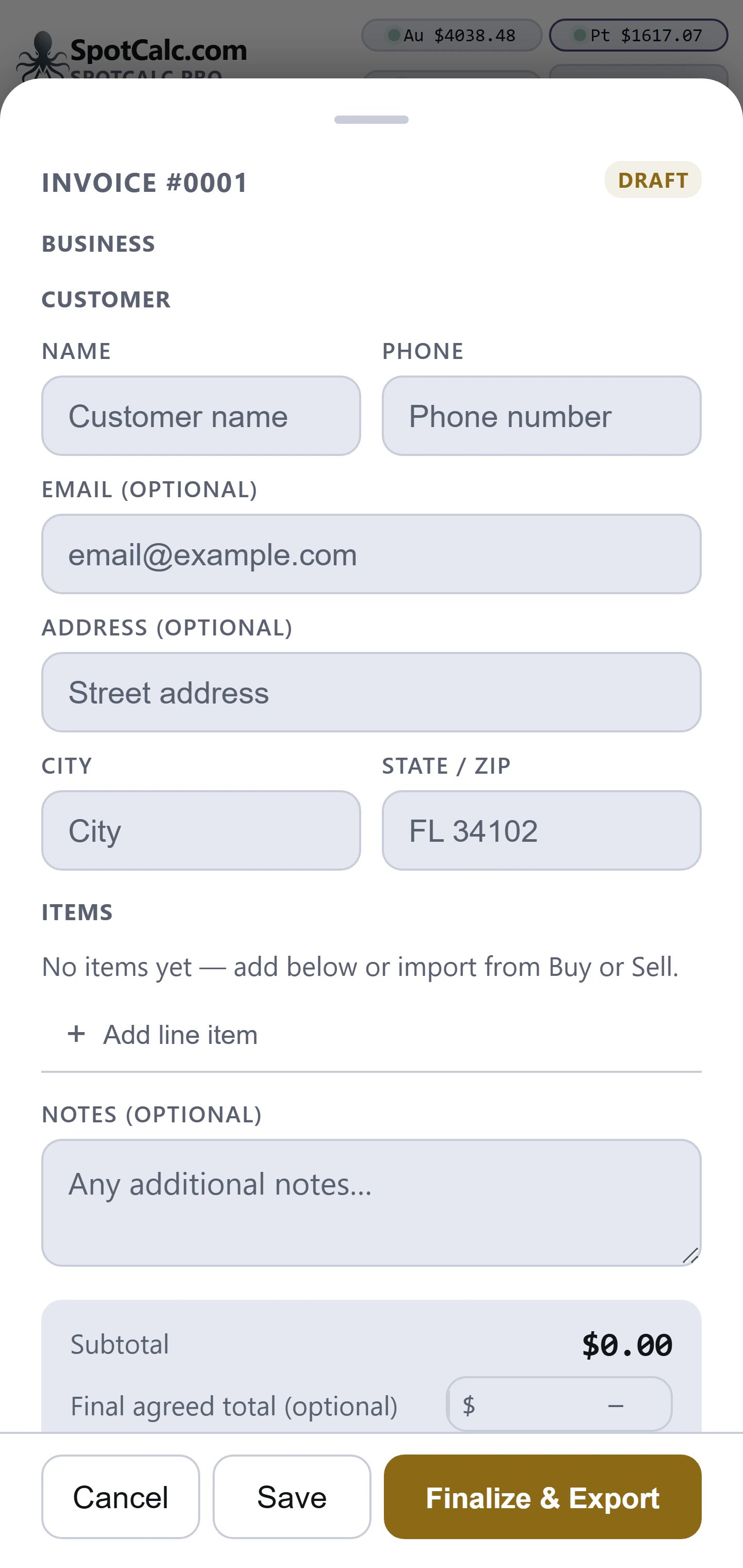
- Add customer details if you want them. Imported items can be edited, and Add line item adds a manual entry.
- Add notes when needed. Final agreed total overrides the calculated subtotal without changing the line items.
- Save keeps a draft. Finalize & Export creates the finished invoice view.
- The finished view offers PDF, Photo and Email, plus Edit to return to the builder.
On the Invoices screen, tap a saved invoice to view it, use the pencil to edit it, or × to delete it. Edit Draft resumes unfinished work. Clear All removes invoice history after confirmation.
Settings → Choose what is shown → Invoice options controls what appears on invoices. Item names, amounts and the invoice total always stay.
11. Settings, section by section
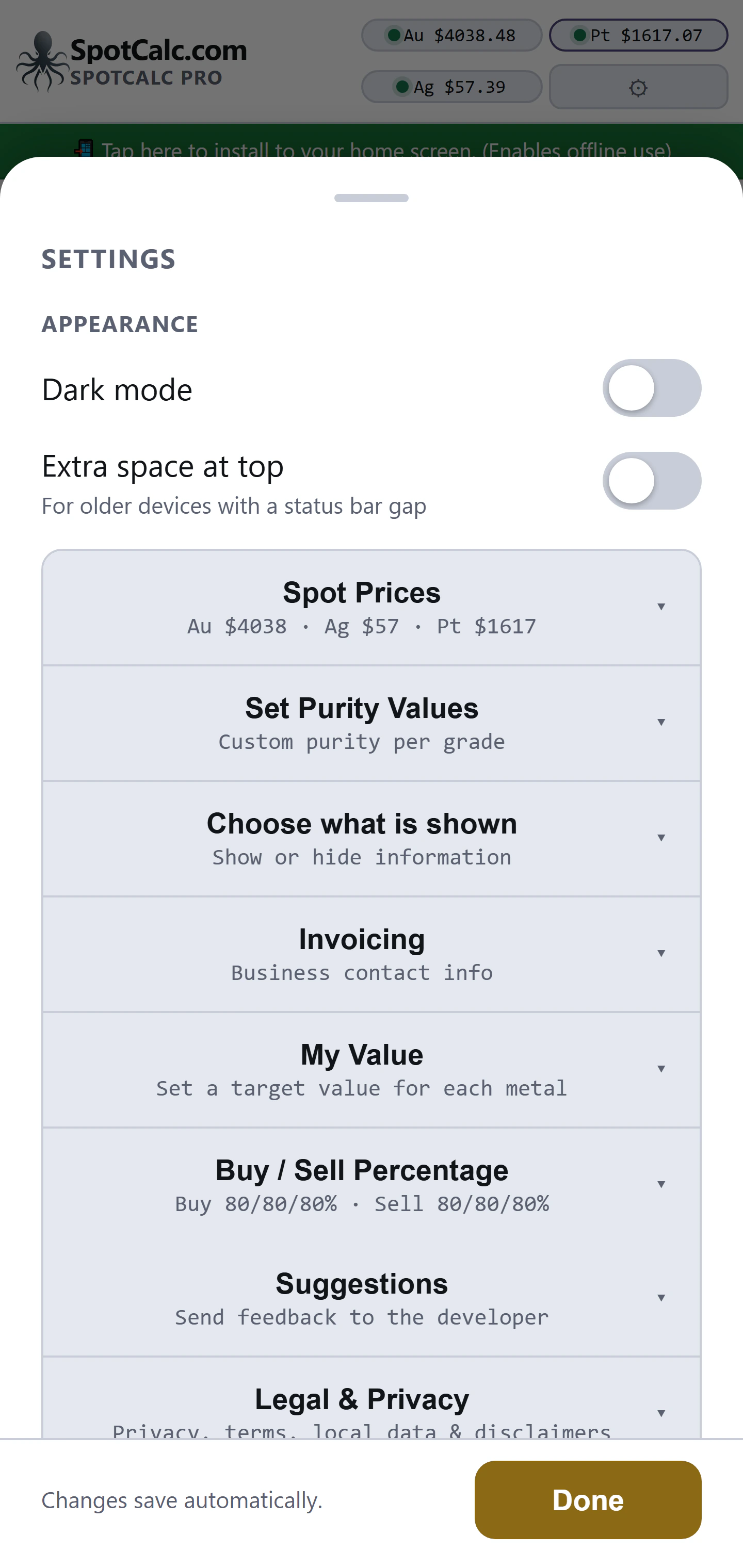
- Appearance: dark mode, plus extra top spacing for older devices with a status-bar gap.
- Spot Prices: turn the live feed on or off for each metal. With Live off, type your own $/oz price; turning it back on returns to the feed.
- Set Purity Values: change the purity behind any grade, app-wide. Reset restores one grade; Reset All restores them all.
- Choose what is shown: show or hide fields on the Buy & Sell screens and on invoices. This is also where My Value and profit can be hidden app-wide.
- Invoicing: your business name and contact details for printing on invoices.
- My Value: your target value percentage for each metal.
- Buy / Sell Percentage: the default percentages for each metal. Buy goes up to 100%; Sell up to 200% for above-spot pricing.
- Suggestions: send feedback straight to the developer.
- Legal & Privacy: documents local storage, outside services, exports, disclaimers and terms.
- About: opens this manual.
12. Installation, offline use and saved data
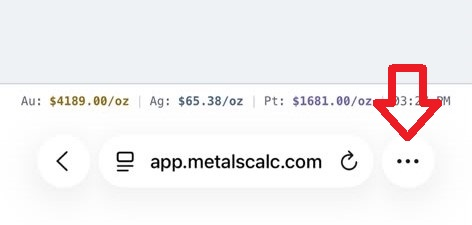
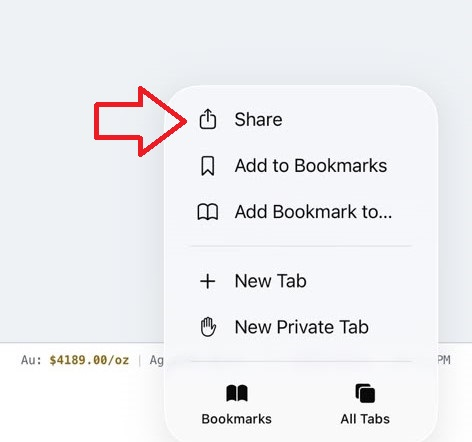
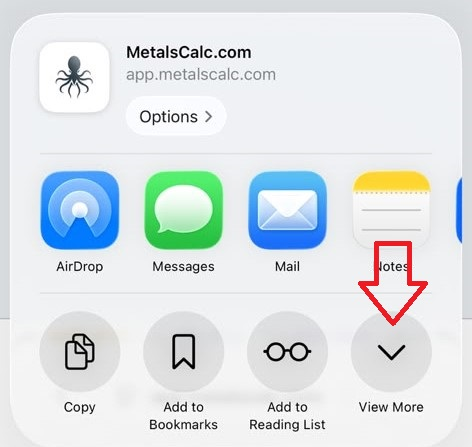
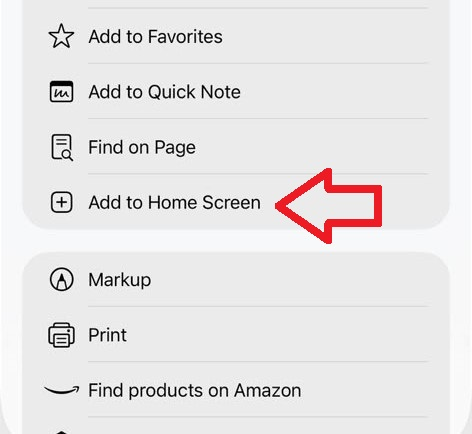
Use the Install button or the green banner to install the app — the guide covers iPhone/iPad and Android. Once installed, the app opens full-screen and works offline.
- If a price cannot refresh, the last known value is shown marked stale with its original timestamp. Double-check it before completing a deal.
- Buy and Sell lists, settings, business details, drafts and invoices are stored in this browser on this device.
- Clearing site data, switching browsers or changing devices can lose those records — SpotCalc Pro cannot recover deleted browser data.
- Storage full — changes are NOT being saved means the browser’s storage is full. Export anything you need, then delete old invoices or free up space — new changes are not saved until it clears.
13. Suggestions, external tools and privacy
Settings → Suggestions sends a message to Surette Systems. The suggestion text is required; name and email are optional. A screenshot or photo can be attached, including one marked up to show the issue. Avoid IDs, payment details and other sensitive information.
Your rows and invoices stay in local browser storage. Data leaves the app only when you take an outside action — submitting a suggestion, opening Google Lens, printing, exporting, emailing or sharing an invoice. Whoever receives that copy controls it from there.
14. Less-visible controls
- The Au, Ag and Pt price buttons jump straight to that metal’s spot settings.
- Gold, Silver, Platinum, Bullion, Coins and Combined Totals titles collapse and reopen their sections.
- The small + on a scrap line opens a menu holding both the line name and Disable row; tapping a saved name edits or removes it, and reaches the same disable action. The Line Item column is collapsed to that + until a line in the group is named.
- A disabled row stays visible but greyed and counts for nothing — no group total, no Combined Totals, no invoice line.
- The unit letters beside a scrap weight open the complete unit list and convert the existing value.
- Scrap, Bullion and Coin percentage buttons open exact-percentage controls; only scrap rows also provide the manual dollar field.
- The −/+ pricing buttons move in exact 0.01% steps. Use default clears a line’s custom percentage or manual price.
- A custom scrap grade can calculate with an exact purity while displaying a familiar grade label.
- The green amount beside an offer or price compares it to My Value — it is not melt minus offer.
- The group circular-arrow button recalculates that metal; Clear removes the entire group, while × removes one entry.
- The footer price line always shows the live feed, even when a manual price is in use.